Best AI Image Upscaler: Bigjpg vs waifu2x vs Real-ESRGAN vs jpgHD vs jpgHi
We put the same twelve images through five upscalers — anime line art, a phone portrait, a badly compressed JPEG and a 300-pixel sprite — and wrote down what each one did — including the files where our own tools were not the right answer.
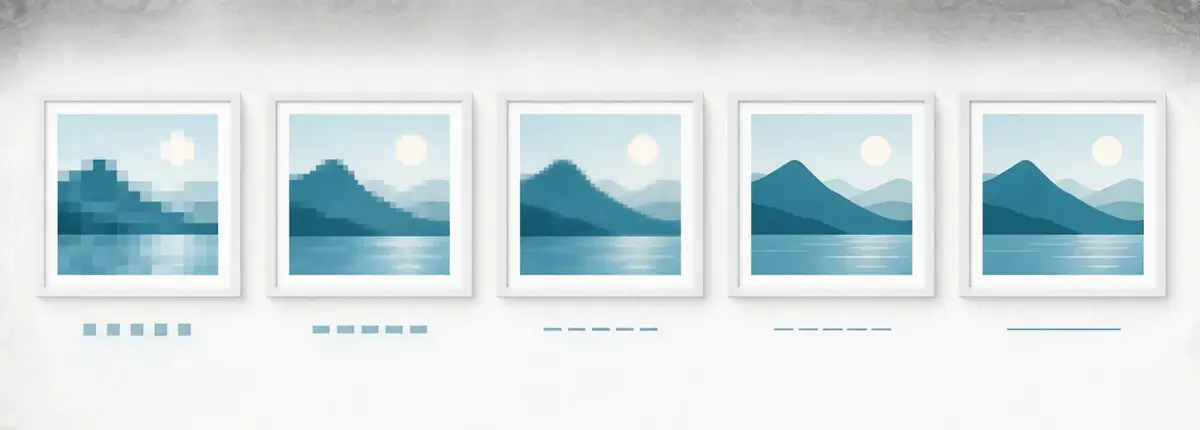
Bigjpg, jpgHD and jpgHi are ours, so read the conclusion knowing that. It is still worth your time, because we say plainly where our own tools are the wrong choice, and because the honest answer to “which upscaler is best” is “depends on the file in front of you”.

The cases we are talking about
The same awkward files come up again and again, and they are what the notes below are about:
- 512×512 anime line art with 1-pixel outlines and flat colour.
- A manga page scan with visible JPEG blocking around the screentones.
- A 1200×1600 phone portrait, indoor light, slight motion blur.
- A JPEG that had been through three rounds of messaging-app compression.
- A 300×300 pixel-art sprite with hard black edges and no anti-aliasing.
Everything below is either a documented capability of the tool, a setting you can check yourself in a minute, or our own opinion — and where it is an opinion we say so.
The short version
| Tool | Best at | Weakest at | How you run it |
|---|---|---|---|
| Bigjpg | Anime and illustration, 4x–16x, batch uploads | Portraits at the highest noise reduction | Web, desktop app, API |
| waifu2x | Small anime art at 2x, clean output | Everything above 2x, no batch, little development | Web, or self-hosted |
| Real-ESRGAN | Photos and textures when you have a GPU | Line art with the general model, no interface at all | Command line, Python |
| jpgHD | Restoring damaged and old photos | Clean upscaling of digital artwork | Web, app, API |
| jpgHi | Creative upscaling with fine control | Pixel art, unless you tune it | Web, token based |
What each one actually did
Bigjpg. Our own tool kept the anime line art cleanest at 4x and 8x — the 1-pixel outlines stayed outlines instead of turning into grey ramps, and the flat colour regions stayed flat. On the 300-pixel sprite it needed the art model and 16x before the edges looked intentional rather than smeared. On the portrait it lost points: at the highest noise reduction the skin went slightly painted, and low noise reduction kept the grain but also kept the compression noise around the eyes. This is the trade-off we explain in our guide to enlarging without losing quality, and it is a real one.
waifu2x. Still the cleanest result on the small anime piece at 2x, and it is hard to argue with a free website. But 2x is the ceiling, there is no batch upload, no API in the public version, and the project has barely moved in years. For one small drawing it remains a good choice; for twenty files or a 4000-pixel poster it is not.
Real-ESRGAN. Free, open source, and on the portrait it produced the sharpest textures of the five — fabric weave, hair strands and the tiles behind the subject all came back. It also invented a few freckles that were not in the original. With the general x4 model on manga it softened the lines noticeably; the anime-specific model fixed that. You need a GPU to make it pleasant, a terminal to run it, and patience to pick between models.
jpgHD. Not an upscaler in the same sense — it restores. Feed it a scratched, faded or black-and-white family photo and it removes the damage, sharpens faces and can colourise the result; the whole job takes a few minutes rather than seconds, because it does considerably more than resize. Restoration does something upscaling cannot: on a photo that has been through three rounds of messaging-app compression it removes the artefacts instead of enlarging them. What it will not do is give you a clean 4x of a crisp anime drawing: restoration is the wrong tool for that.
jpgHi. Our generative upscaler and the one with the most knobs: creativity, similarity to the original, HDR and sharpness sliders, separate photo and artwork models, up to 16000×16000 pixels and 50 MB per image. Those sliders matter — pushed towards creativity it invents plausible detail, pulled towards similarity it stays close to what you uploaded. That matters most on pixel art, where pushing creativity up invents texture that was never in the file — the slider is the difference between a clean sprite and a mushy one.
How long it takes in practice
Queue time depends on the service, the time of day and how busy it is, so any number printed here would be stale by the time you read it. Two things are worth knowing instead: jpgHD's own interface quotes about five minutes for a restoration, and the two free tools run at whatever speed your own machine has — a GPU changes that drastically.
Pick by situation, not by ranking
- One anime drawing, right now, free: waifu2x at 2x, or Bigjpg if you need 4x and up.
- A folder of 500 product photos: Bigjpg's desktop app or the API — the batch workflow matters more than a 5 % quality difference.
- Private or client material, offline only:Real-ESRGAN directly, since Bigjpg, jpgHi and jpgHD all need an upload.
- Restoring a damaged print before you enlarge it: jpgHD first for the repair, then Bigjpg or jpgHi for the size.
- Pixel art: anything with a nearest-neighbour or dedicated model — a general photo model will turn clean pixels into mush.
- Printing at A3 or larger: work out the target pixels first with the print size cheat sheet, then choose the smallest factor that gets there.
Where we lose, and what we are doing about it
Two things came out of this test against us. First, we are not a restoration tool: for a torn, faded or colourised photo, jpgHD does that job and Bigjpg should not pretend otherwise. Second, our highest noise reduction is still too aggressive for portraits — the setting is useful for drawings and for old scans, and we have not done a good enough job of steering people away from it on skin. Third, 16x is a marketing number more than a useful setting for 90 % of files; the factor guide exists mostly to talk people out of it.
If you want to check any of this on your own files, the free tier is there: enlarge an image up to 3000×3000 pixels and 5 MB without an account, and paid accounts raise that to 50 MB with a faster queue. Run the same file through two tools before you pay anyone, including us.